Windows 11 upgrade on older PC hardware is now achievable; IT NEAR U uses Rufus and proven methods to help unsupported machines run Windows 11 securely before Windows 10 end of life arrives.
Windows 10 will stop receiving free security updates on 14 October 2025. After that date, your machine becomes increasingly vulnerable to cyber threats, malware, and security exploits. For most users, this creates an urgent decision; upgrade to Windows 11 or risk running an unsupported operating system.
Yet here’s the challenge many face; Microsoft’s original Windows 11 requirements locked out a significant number of capable systems through stringent criteria including TPM 2.0 support and newer-generation processor requirements. If your older PC doesn’t officially meet those specifications, you might feel forced to buy new hardware you don’t actually need.
Many Wellington-region residents and business owners face this exact dilemma. A perfectly functional machine, still in good working condition, suddenly deemed incompatible by arbitrary hardware restrictions. For those seeking a Windows 11 free upgrade, the news gets better.
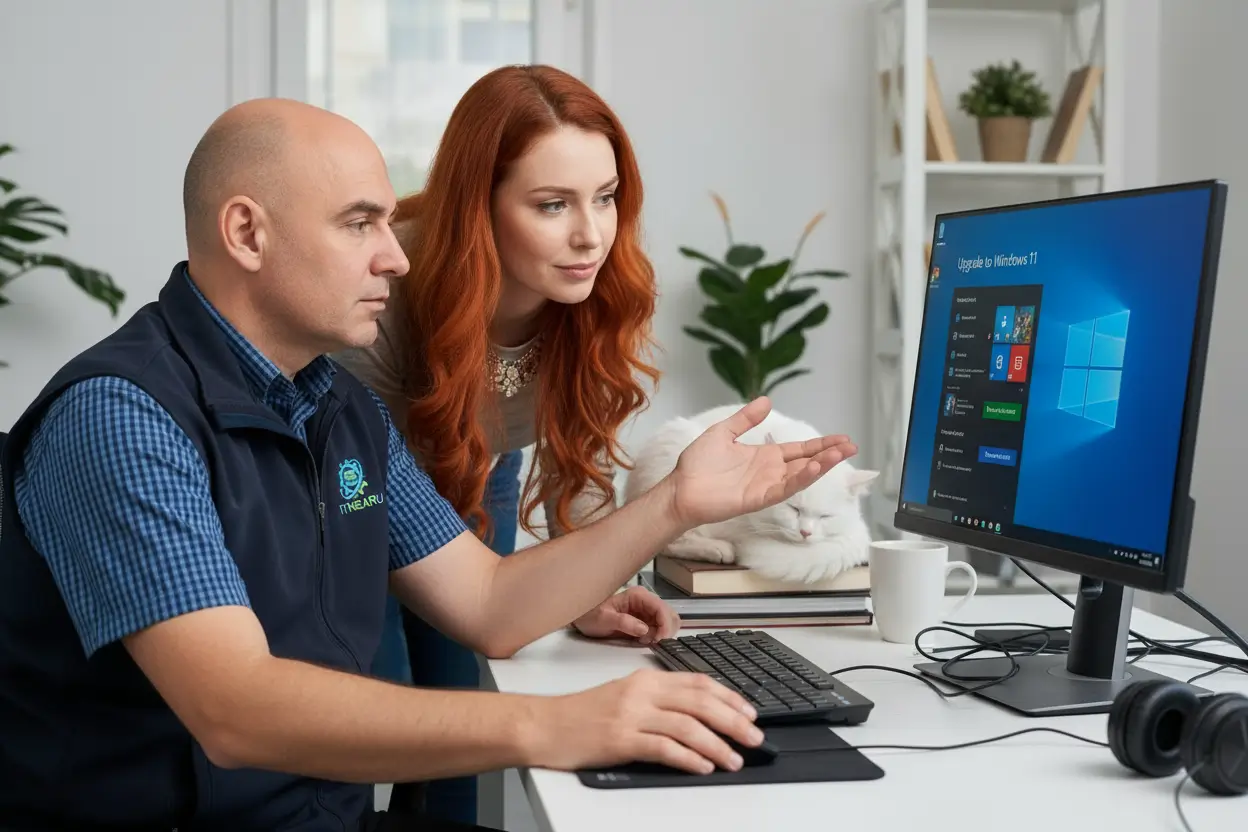
Microsoft has softened the once-rigid upgrade requirements for Windows 11, making it more feasible than ever for older PCs to make the leap forward. This shift opens the door for thousands of perfectly functional machines to receive modern security patches and performance improvements.
At IT NEAR U, we’ve been helping customers navigate Windows 10 to Windows 11 migration for months. We understand that a PC in good working condition deserves a second life, not a trip to the e-waste bin.
The key development; Microsoft now allows more machines to upgrade through ISO file installations and updated compatibility settings. However, users must tread carefully. An unsupported or poorly prepared upgrade can lead to compatibility issues, data loss, or ongoing performance problems.
Not all unsupported hardware is created equal. Some older systems can run Windows 11 without issues. Others may struggle or fail silently. The critical assessment determines whether your machine genuinely cannot run Windows 11 or whether restrictive compatibility checks are simply preventing a viable upgrade.
Our technicians evaluate each machine individually, checking BIOS settings, processor generation, RAM capacity, and storage type. We identify whether your PC qualifies under the latest guidelines or if minimal upgrades can unlock full compatibility.
For machines that fail the TPM 2.0 check or have older processors, we assess whether those restrictions are genuinely necessary for your workload or simply overly cautious Microsoft requirements.
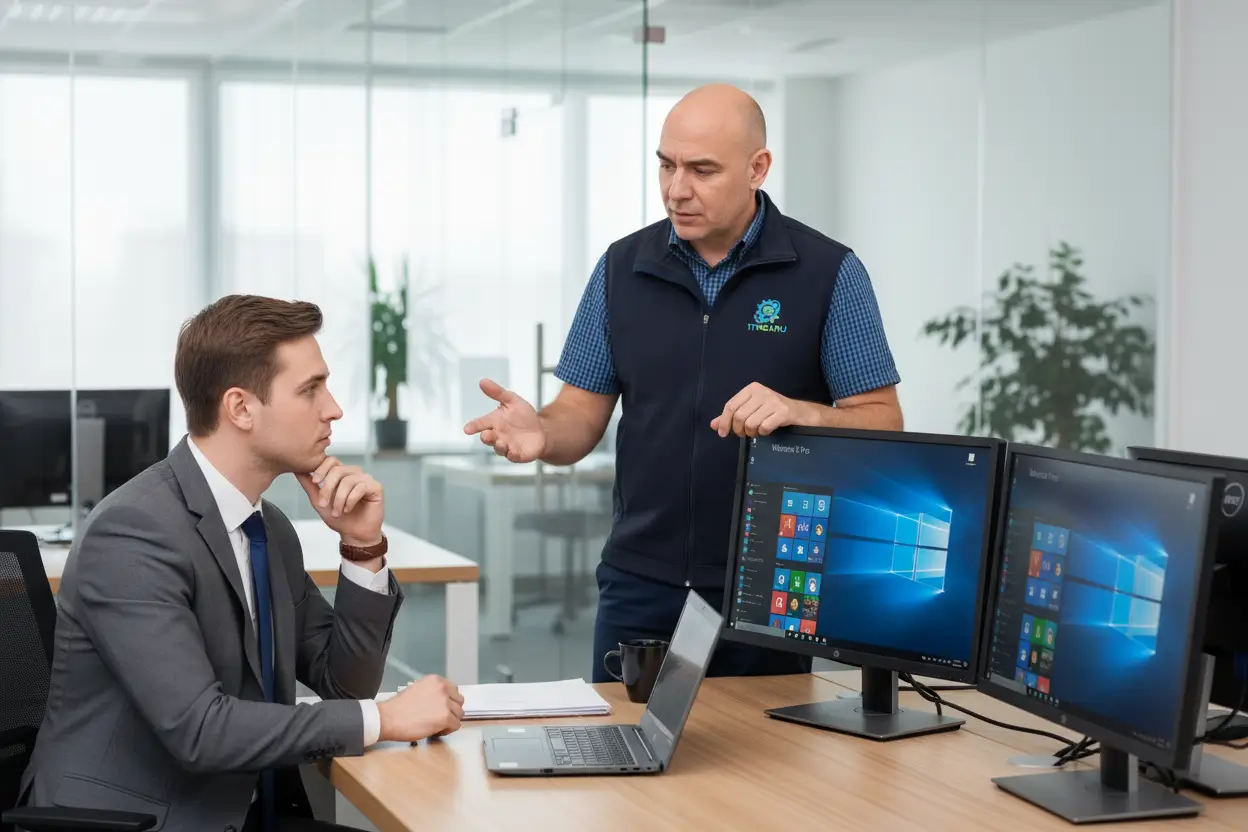
Before we touch your system, we create a complete backup of all your files, documents, photos, email, and application settings. We use multiple backup methods; local external drives, cloud storage via OneDrive or Dropbox, and sector-by-sector imaging of your existing Windows 10 installation.
This redundancy means you never lose a single file, even if something unexpected happens during the Windows 11 upgrade older PC process. We treat data protection as the absolute priority.
We verify whether your machine meets Windows 11’s fundamental requirements. If your PC falls just outside the official criteria, we document why and determine whether the restriction is genuinely necessary or simply overly cautious.
Some machines can run Windows 11 perfectly despite Microsoft’s technical warnings. Others genuinely need minor upgrades first. Our assessment is honest and thorough; no unnecessary upsells.
If your PC is still running a traditional mechanical hard drive (HDD), this is the ideal time to perform an SSD upgrade Windows 11. The performance difference is dramatic; boot times drop from 60 seconds to 15 seconds, applications launch instantly, and the entire system feels responsive and snappy.
We commonly upgrade RAM simultaneously. Many older machines shipped with just 4GB or 8GB. Windows 11 performs far better with 16GB. These upgrades are affordable and often breathe new life into ageing hardware.
An SSD upgrade transforms how your computer responds; applications open instantly, multitasking becomes seamless, and system responsiveness improves dramatically. We’ve installed SSDs in thousands of older machines. The investment typically costs NZ$150–280 and adds years of productive life to hardware worth far more than that.
For PCs that can handle Windows 11 but fail Microsoft’s automated compatibility checks, we use Rufus; a trusted utility for creating bootable USB installation media.
Rufus Windows 11 installation allows us to bypass TPM 2.0 checks and Secure Boot requirements on systems that don’t require them. This is not a hack or workaround for unsuitable machines; it’s a legitimate path for hardware that is technically capable but officially unsupported.
The process involves creating a custom Windows 11 installation ISO file with modified compatibility parameters, then installing Windows 11 directly onto the machine via USB. We handle all technical steps; you simply verify the upgrade succeeded.
TPM 2.0 (Trusted Platform Module) is a security chip. Microsoft required it for Windows 11 to enhance security. However, many older PCs with perfectly sound security architecture lack TPM 2.0 simply because they predate the requirement.
A PC without TPM 2.0 that otherwise meets Windows 11 specifications can run the operating system safely. The Rufus utility lets us acknowledge this reality and proceed with installation. This is fundamentally different from forcing Windows 11 onto genuinely incompatible hardware.
Once we’ve backed up your data and confirmed compatibility, the actual Windows 11 free upgrade proceeds in stages.
First, we boot from our Rufus-prepared USB media. The Windows 11 installer loads and begins the setup wizard. We configure language, region, keyboard layout, and account credentials to match your previous Windows 10 setup.
Next, we select the target drive for installation. On machines where we’ve installed an SSD, we choose that drive as the primary partition. The installer formats the drive, copies Windows 11 files, and installs the bootloader.
Finally, we allow the system to complete its initial setup, apply critical Windows updates, and verify all hardware is detected correctly.
After Windows 11 is running, we restore your backed-up files and user settings. Microsoft Office, browsers, email clients, antivirus software, and productivity tools all return to your system exactly as they were before.
We handle email reconfiguration across Outlook, Thunderbird, or any email client you use. Printers, scanners, and network devices are reconnected and tested. Your WiFi reconnects automatically using saved network credentials.
For most users, the system feels identical to before; except it now runs Windows 11 with full security support and improved performance.
We’re honest when a machine truly isn’t suitable for Windows 11. Sometimes the hardware is too old, incompatible drivers don’t exist, or other factors make an upgrade inadvisable.
In those cases, we discuss alternatives; Microsoft’s Extended Security Updates (ESU) program allows Windows 10 machines to remain safe for an extra year, until October 2026. You can enrol for free by backing up your PC settings to OneDrive, or pay a one-off fee for continued support.
We can set up OneDrive backup for you, complete the ESU enrolment, and ensure your PC continues receiving security patches while you plan a longer-term replacement strategy.
Upgrading to Windows 11 alone doesn’t guarantee your PC feels faster. If your storage is still a mechanical drive, the system will feel sluggish despite a new operating system.
That’s why we recommend pairing Windows 10 to Windows 11 migration with SSD upgrade Windows 11 installations. An SSD transforms how your computer responds; applications open instantly, multitasking becomes seamless, and system responsiveness improves dramatically.
The combination of a modern operating system and modern storage creates a machine that feels years younger. This investment typically costs far less than purchasing new hardware outright.
Whether you’re in Wellington City, Lower Hutt, Upper Hutt, Porirua, or the Kāpiti Coast, our mobile technicians can visit your home or business to handle the entire Windows 11 upgrade on unsupported hardware on-site.
We bring all necessary tools; Rufus on USB, backup utilities, SSD installation equipment, and testing hardware. Most upgrades complete in a single visit.
If your Windows 10 PC is still running well but faces the October 2025 deadline, contact IT NEAR U for a free compatibility assessment. We’ll evaluate your machine, discuss Windows 11 upgrade older PC options, and explain whether Windows 11 is viable for your hardware or whether an extended support extension makes more sense.
Don’t let your old PC become e-waste. Let’s upgrade it responsibly and keep it running securely for years to come.